


How to Use KeepMusic Music Converter?

KeepMusic is a comprehensive music downloader for multi-platform users. It is designed to download music from Spotify, Apple Music, Amazon Music, YouTube Music, YouTube, Tidal, Deezer, SoundCloud, and more. It supports lossless downloading and converting music to MP3, AAC, FLAC, WAV, AIFF, or ALAC formats while retaining full ID3 tags. In addition, keepmusic has free built-in tools including: AA/AAX Converter, Format Converter, Burn CD, Audio Editor, and Tag Editor. Please follow the step-by-step tutorial below to learn how to use KeepMusic.
Part 1: How to Register KeepMusic Music Converter?
Step 1 Launch KeepMusic Music Converter on your computer and click the Profile icon in the lower left corner.
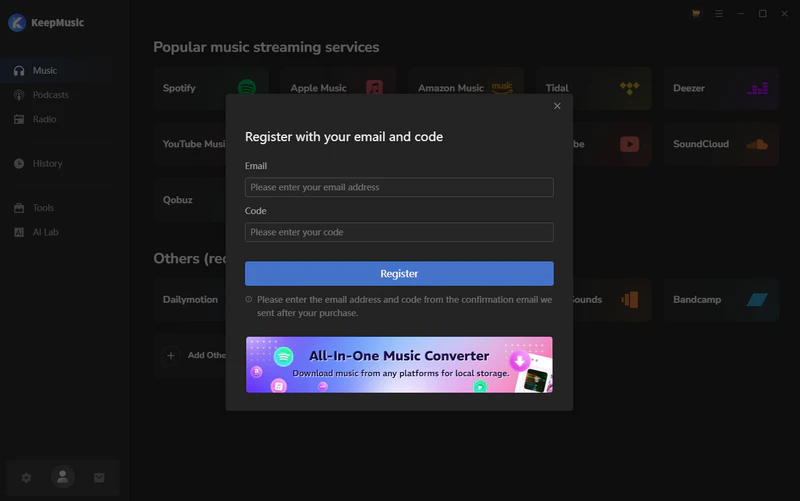
Step 2Copy the registration email and code you received in your order email and paste the details into the registration popup window.
Note: The registration information is case-sensitive. And, please do not add space at the beginning or the end of the registration info.
Part 2: How to Convert Streaming Music to MP3, AAC, WAV, FLAC, AIFF or ALAC Format?
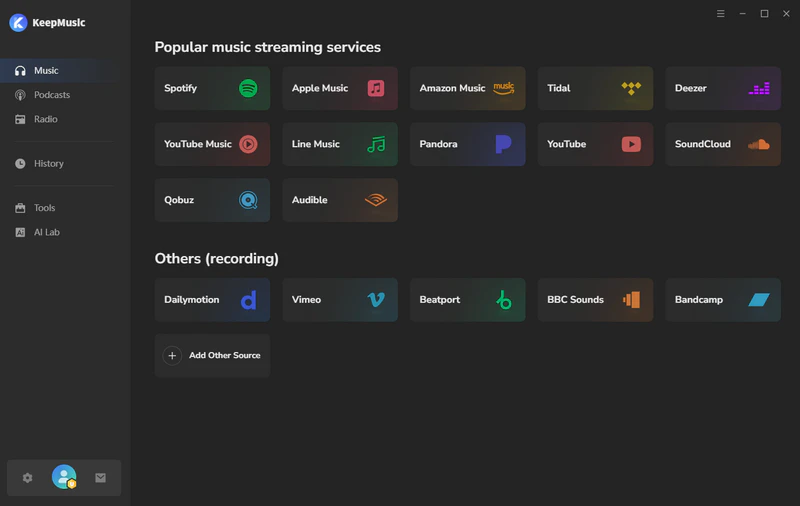
Step 1 Select Streaming Platform
Run KeepMusic on your computer, and you will see all the supported streaming platforms, and choose your preferred one.
Step 2 Add Music to KeepMusic
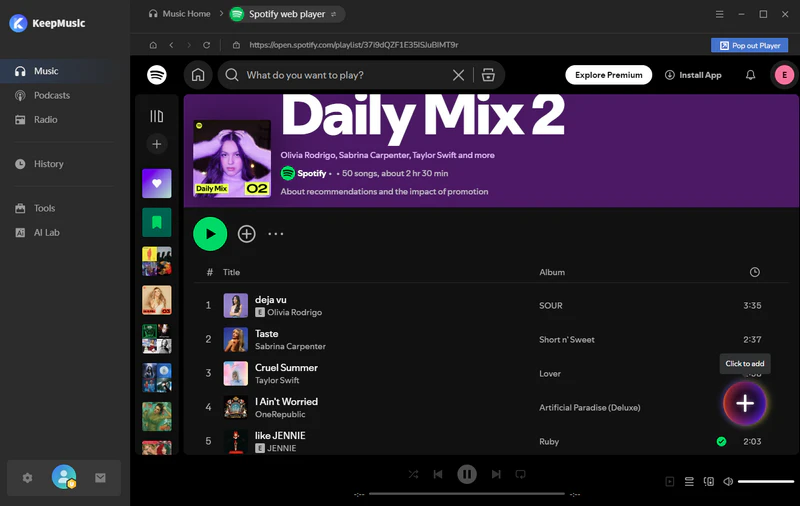
KeepMusic supports two modes: App Mode and WebPlayer Mode.
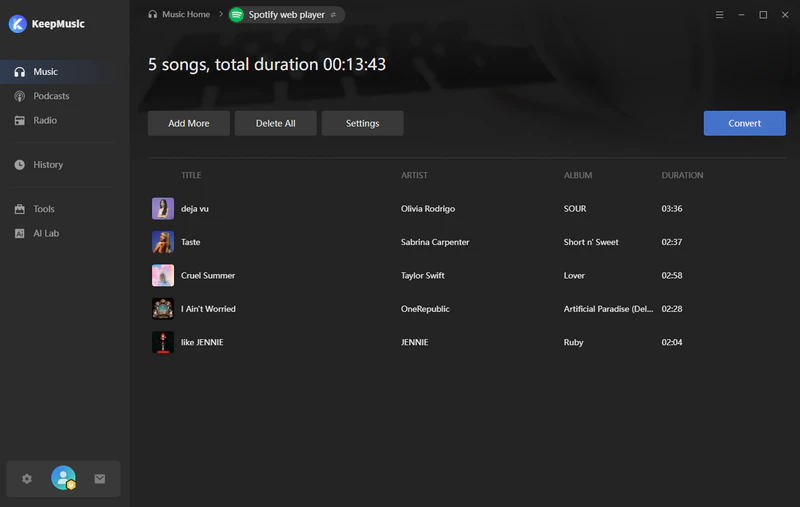
[App Mode]: There are 3 ways to add: 1. Directly drag and drop your favorite music from the music app into KeepMusic. 2. Click the "+" button to add songs. 3. Copy and paste the track/playlist/album link into the search bar and KeepMusic will automatically parse the link.
[WebPlayer Mode]: Open your songs/playlists/albums, and then click the "+" button to add the songs to the conversion panel.
Step 3 Custom Music Settings
Click on the Settings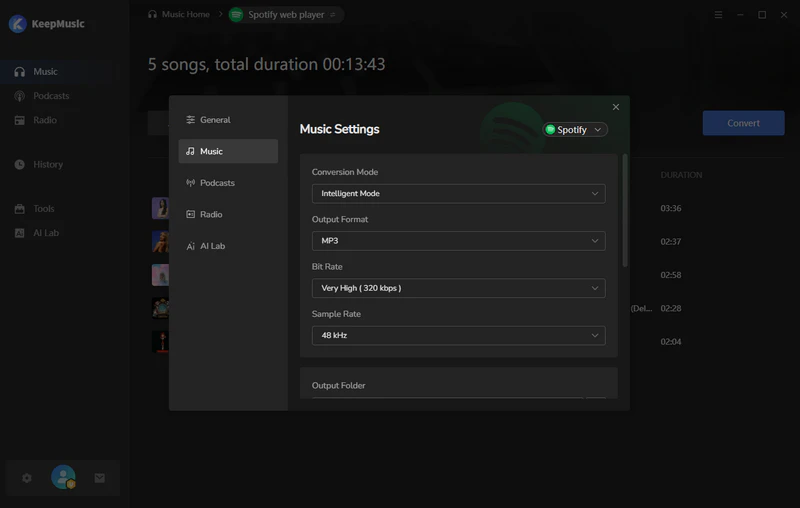 button to customize the settings: Output Format, Bit Rate, Sample Rate, Output Folder, Output File Name, Output Organized and other parameters.
Step 4 Start to Convert Music
Click on the Convert button to start converting the Music to the output format that you set up in the previous operation.
Step 5 Check Your Downloaded Music
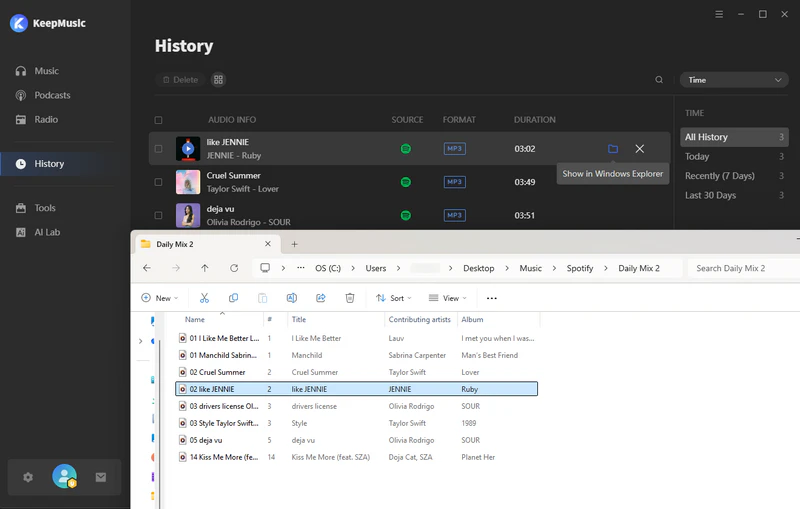
After the conversion is completed, go to History to find the well-converted Music. By clicking the folder icon next to the song to locate its location on your local computer.
Part 3: How to Convert AAA/AAX Audiobooks to MP3, M4A, M4B Formats?
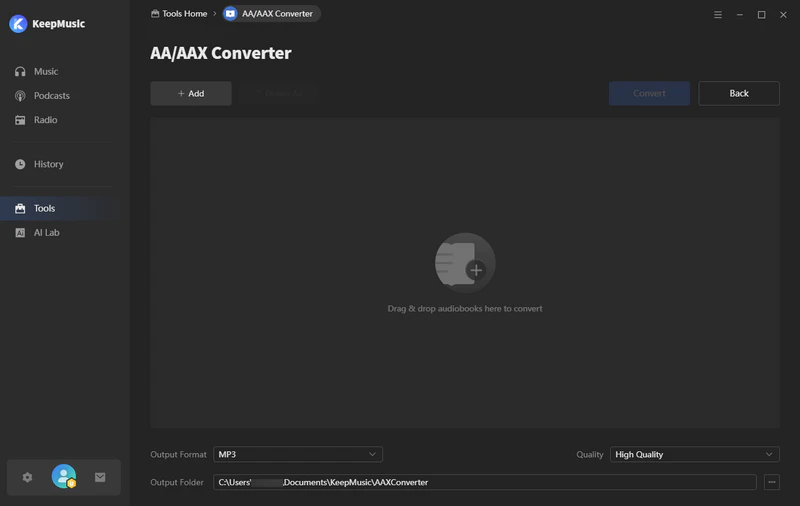
Go to Tools > AA/AAX Converter, click the "Add" button, or drag & drop the audiobooks from your local computer to convert. You can choose the output format as MP3/M4A/M4B. Then tap the Convert to start.
Part 4: How to Convert Local Audio Files to Other Formats?
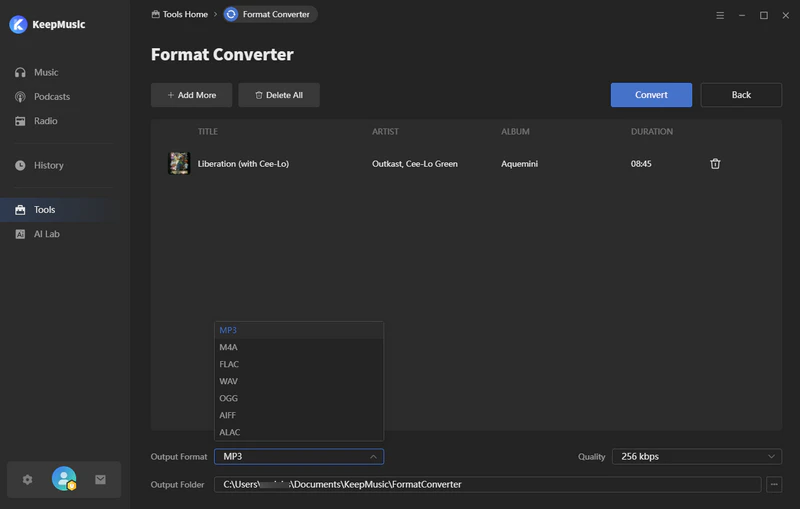
With a built-in "Format Converter", you can convert your local music to MP3, M4A, FLAC, WAV, OGG, and AIFF. Simply drag and drop your local audio files into KeepMusic, select the desired output format, and then click the "Convert" button to complete the conversion for playback on any device.
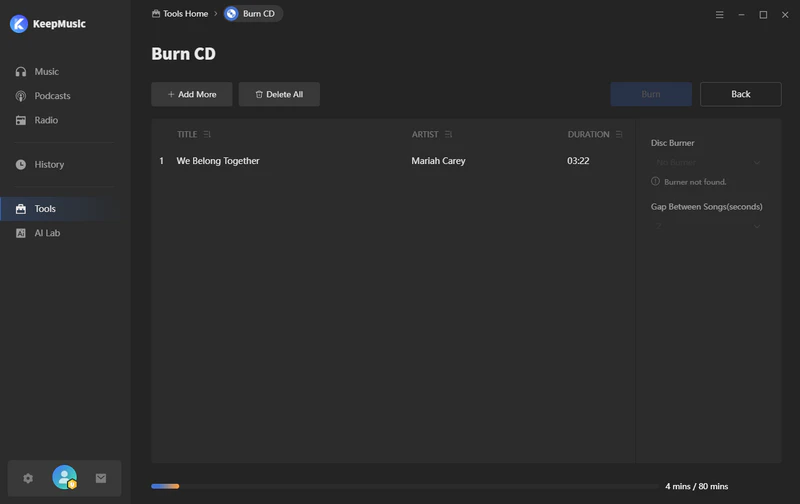
Part 5: How to Burn Any Music to CD?
Open Tools > Burn CD to to import music from your computer. In the meantime, insert a blank CD into your computer. Once everything is ready, click Burn to start the process.
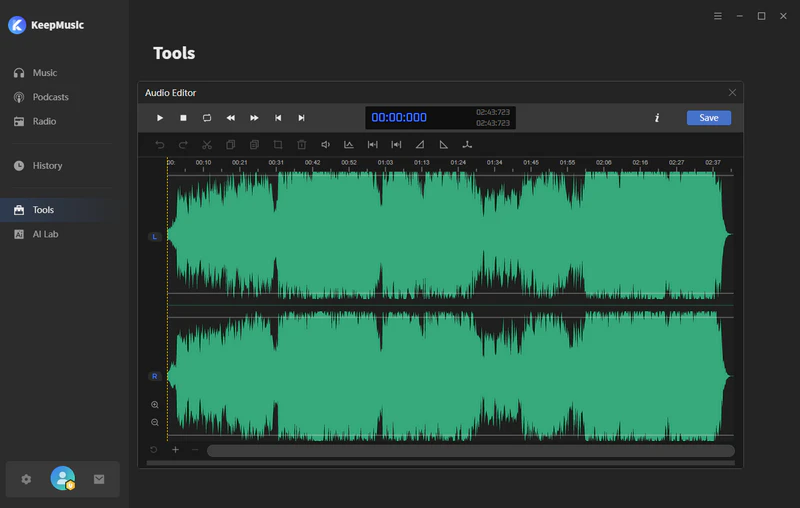
Part 6: How to Cut, Merge, and Adjust Local Audio Music Files?
Navigate to Tools > Audio Editor to edit your audio files. Import local tracks, then cut, merge, adjust volume, and add fade-in and fade-out effects as needed.
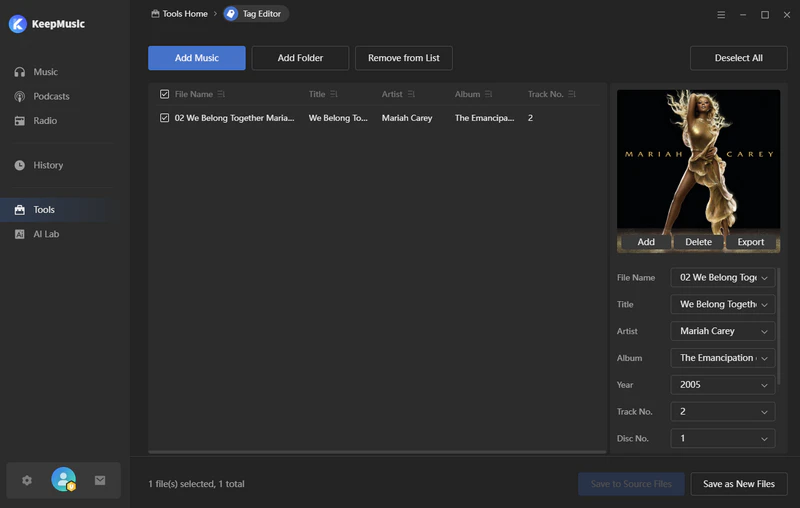
Part 7: How to Edit Music ID3 Tags?
Click Tools > Tag Editor to add local audio files or converted music, and edit ID3 tags, including title, artist, album cover, year, genre, and track number for better management.
Part 8: Still Need Help?
We’re here to make sure you have the best experience with our tools. If you need further assistance, you can contact us at support@keepmusic.io via email at any time, and our team will provide technical support and get back to you within 24 hours.


 Spotify Music Converter
 Amazon Music Converter
 Apple Music Converter
 Tidal Music Converter